Saurabh Rai
A Green Dot Is Not Presence
A status dot mostly tells you about a device, and people get judged by it anyway. Here is how a team can signal availability in a way that holds up.
On this page
- The Dot Is a Sensor Reading, and the Sensor Is Your Keyboard
- You Are Asking Three Questions, and the Dot Answers None of Them
- Once Someone Judges the Signal, People Start Managing the Signal
- Manual Status Is Better, Until It Goes Stale
- Better Remote Team Presence: Three States, One Time, One Way In
- Start by Counting the Messages That Should Not Exist
- What Our Presence View Shows, and What It Cannot Promise
- Sources
A green dot knows your laptop was touched recently. It has never known anything about you.
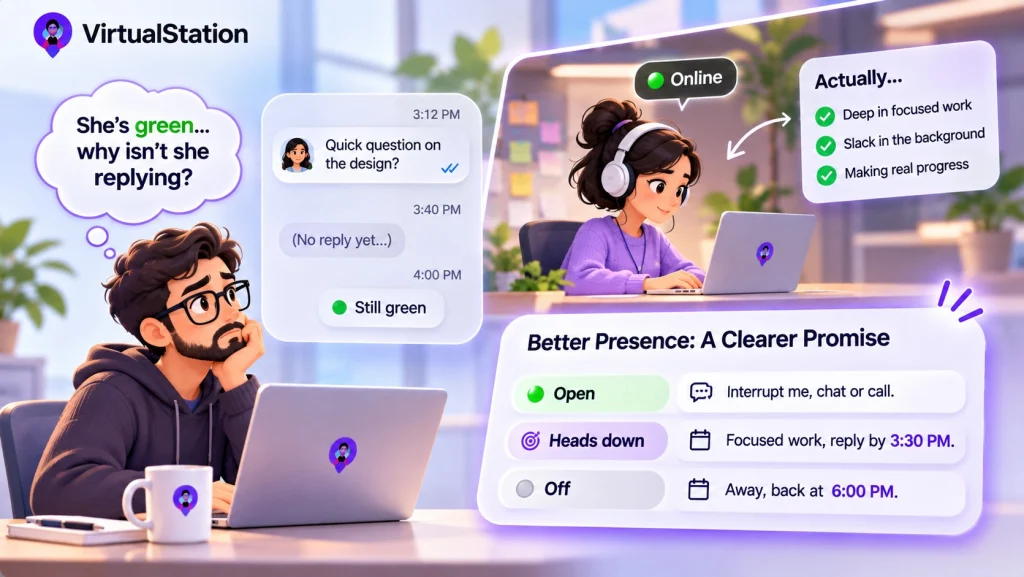
Picture this: it is 3:12, and you send your designer a question because her dot is green. By 3:40 there is no reply and the dot is still green. By 4 you have a small theory: she is ignoring you, or annoyed about this morning, or not really working.
She is two hours into the only uninterrupted stretch she has had all week, with Slack buried behind a file. Moving the mouse keeps her green. Tomorrow she will read a contract on paper for 15 minutes, her dot will change, and someone will wonder where she went.
Nobody lied in that story, and nobody learned anything true. Remote team presence, as most tools show it by default, gets read as a statement about a person. It is mostly a statement about a device.
The Dot Is a Sensor Reading, and the Sensor Is Your Keyboard
The vendors are open about this. Slack’s help page says you show as active when Slack is open on your desktop or mobile device, and that you go away after ten minutes without desktop activity, or when you leave the mobile app. Microsoft’s documentation says Teams status normally comes from user activity, the state of the app and the Outlook calendar, and that a computer goes to Away after a few minutes of inactivity or when it locks.
That is reasonable engineering. It just answers a narrower question than the one you are asking. And to be fair, both tools now do more than the dot: Slack can show that you may be slow to respond during a huddle, in focus mode or outside working hours, and Teams can show In a meeting or Focusing from your calendar. Those are real improvements, but they still report what your software can see. A meeting you accepted and skipped looks the same as one you are running.
You Are Asking Three Questions, and the Dot Answers None of Them
When you glance at someone’s status, you usually want one of these:
- Can I interrupt this person right now?
- If not, when will I hear back?
- Are they actually working?
The first two are coordination questions, and only the person can answer them. A laptop cannot know that you would welcome a quick question about the launch but not about the logo. The third question is the dangerous one, and the dot gets dragged into it anyway.
Presence is not a reading. It is a promise: what you can expect from me, and until when.
Once Someone Judges the Signal, People Start Managing the Signal
Managers are not checking dots out of malice. A 2022 Microsoft survey of 20,006 workers in 11 countries found 85% of leaders said hybrid work made it hard to be confident their people were productive, while 87% of employees said they were productive. Microsoft sells workplace software, so read it as one vendor’s data, but that gap is the anxiety a green dot appears to soothe.
Your team notices the checking, even if nobody mentions it. So laptops stay awake, replies get faster and shallower, and someone answers from the dinner table so as not to look gone. The person protecting two hours of real concentration looks worst of all, which is backward.
The far end of that logic has been on the record. In 2024, Wells Fargo discharged more than a dozen employees after a review of allegations “involving simulation of keyboard activity creating impression of active work,” according to regulatory disclosures. The reporting does not say whether they worked remotely or how it was discovered, and a bank’s compliance case is not a story about a chat app. It does show what a keyboard signal turns into once it starts to count.
If this is your actual worry, the dot was never the tool for it. We wrote separately about getting visibility without micromanaging.
Manual Status Is Better, Until It Goes Stale
The obvious fix is to have people set a status themselves. That works until they forget. Teams’ documentation is a useful example: with no duration set, a manual Busy or Do not disturb lasts a day, and most other statuses last seven days. A “Be right back” can, in principle, last a week.
A sensor lies by accident. A manual status lies by neglect. The cure for both is the same small thing: an end time.
Better Remote Team Presence: Three States, One Time, One Way In
None of this needs new software. It needs about 15 minutes of agreement, and it works in any tool with a status field.
- Define three states by what others may do. Open means interrupt me, call or walk over. Heads down means message me, and I will reply by the time shown. Off means I am gone, and here is when I am back.
- Attach an end time to anything that is not Open. “Heads down until 3:30” is a promise. “Busy” is a shrug.
- Give urgency exactly one way in. Pick a route, such as a phone call, and define urgent in one sentence: a customer cannot use the product, or something has to go out today. If everything is urgent, heads down means nothing.
- Set a default reply window. Same working day is a common choice, so pick yours and write it down. Once waiting has a known limit, people stop watching dots.
- Put local working hours on every profile. A lot of the “are you there?” problem on a distributed team is plain arithmetic.
- Say the rule out loud: status is for coordination, never for judging work. Nobody gets asked why they were away at 2. You judge finished work. If the manager does not say this, nobody will believe the rest.
Some teams should go further and drop live status altogether. Twist is built on that idea, with no “I’m available” bubbles and the line “productivity over presence.” If your team is truly async, that is a coherent choice and may be better than any status system.
Start by Counting the Messages That Should Not Exist
- Tomorrow, start a one-week count of messages that are only about availability: “got a sec?”, “are you around?”, “did you see my message?” Each one is a presence signal that failed.
- In your next team meeting, agree the three states and the reply window, then write them where a new hire would find them.
- Go first. Block out two hours, set Heads down with an end time, and do not answer until it ends. People copy what they see is safe.
- Count again a week later. If the number has not moved, ask which state people do not trust, because that is usually the real conversation.
Related reading: what spatial audio changes in a working day.
What Our Presence View Shows, and What It Cannot Promise
VirtualStation tries to carry more of this in the interface. Our team presence page shows people as available, focused, in a meeting or away, along with where they are on the virtual floor, their local working hours and when they will be free next, such as focus “until 3:30 PM.” A person can then choose to walk over, leave a message or wait.
It does not remove the need for the agreement above. An avatar at a desk can mislead just as a dot can, and without shared meanings it is only a better-dressed dot. Time tracking is a separate decision: it never starts by itself, and only while someone is tracking does it record app and URL activity and possibly take screenshots, which admins configure and which are captured at randomized times.
The dot can tell you the laptop is awake. Only the person can tell you when you can have their attention.
Sources
From the VirtualStation team
See who's around, what's moving and what's stuck
VirtualStation puts your team's presence, meetings, chat, tasks and AI standups in one workspace, so the answer to "how's it going?" is already on screen.
No credit card required